

Introduction
Trying to figure out how to stream Netflix on Discord without black screen issues can be frustrating, especially when everything seems set up correctly but your friends only see a blank display. This is one of the most common problems users face when hosting watch parties online.
The good news is that this issue is completely fixable. With the right setup and a few simple adjustments, you can stream your favorite Netflix shows smoothly on Discord without interruptions. In this guide, you’ll learn a complete, beginner-friendly method to stream Netflix, along with proven fixes that actually work in 2026.
Why Does Netflix Show a Black Screen on Discord?
Before jumping into the solution, it’s important to understand the reason behind the black screen problem.
Netflix uses DRM (Digital Rights Management) protection to prevent unauthorized sharing of its content. When you try to stream Netflix via screen sharing, this protection can block video output, resulting in a black screen for viewers.
Another common cause is hardware acceleration. Modern browsers and apps use your GPU to render video, which can interfere with screen capture tools like Discord.
So, if you’re seeing a black screen, it’s not your fault—it’s just how the system works by default.
Requirements Before You Start Streaming
To stream Netflix on Discord smoothly, you need a few basic things ready. Having the right setup will help you avoid most issues.
- A working Netflix subscription
- Discord desktop application installed
- A browser like Chrome or Edge
- Stable internet connection
- Hardware acceleration disabled (important step)
Using the desktop version of Discord is highly recommended because it provides better screen sharing features compared to the web version.
Step-by-Step Guide to Stream Netflix on Discord
Open Netflix in Your Browser
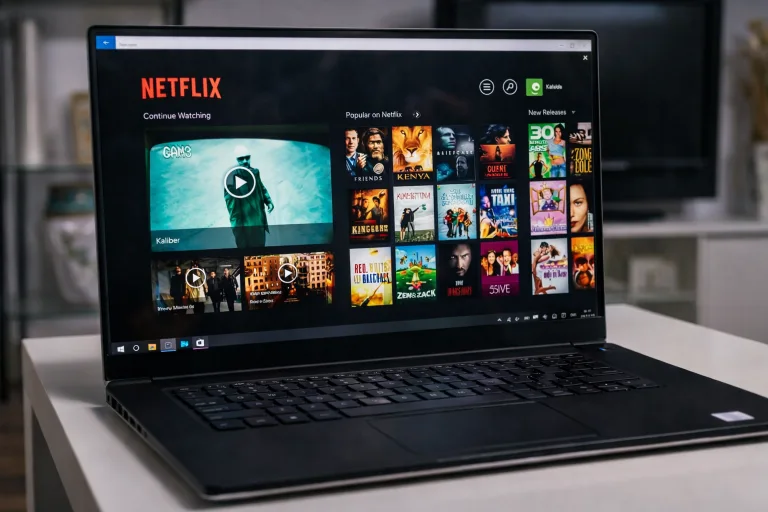
Start by opening Netflix in a supported browser. Google Chrome and Microsoft Edge work best for this setup.
Log into your account and select the movie or show you want to stream. Keep the video paused for now so you can set everything up properly.
Avoid using the Netflix Windows app, as it often triggers DRM restrictions more aggressively than browsers.
Launch Discord and Join a Voice Channel
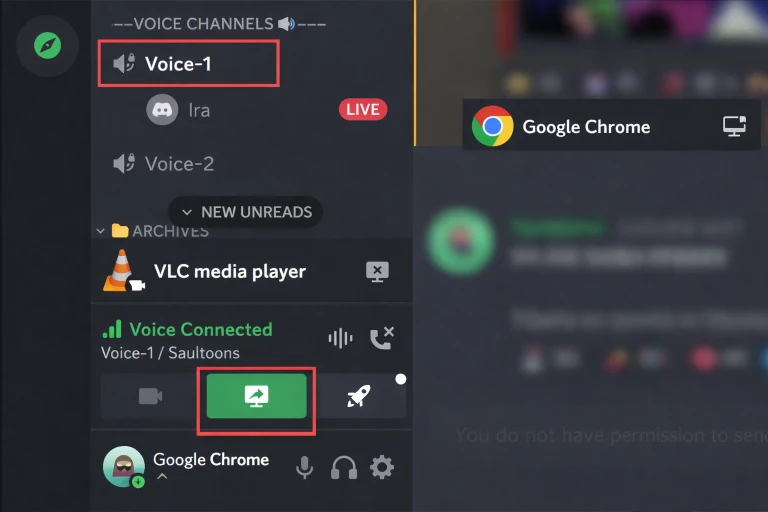
Open Discord and join a server where you want to stream. Enter a voice channel so your friends can join and watch.
Make sure your microphone and speakers are working correctly before starting the stream. This helps avoid interruptions later.
Add Your Browser as a Game
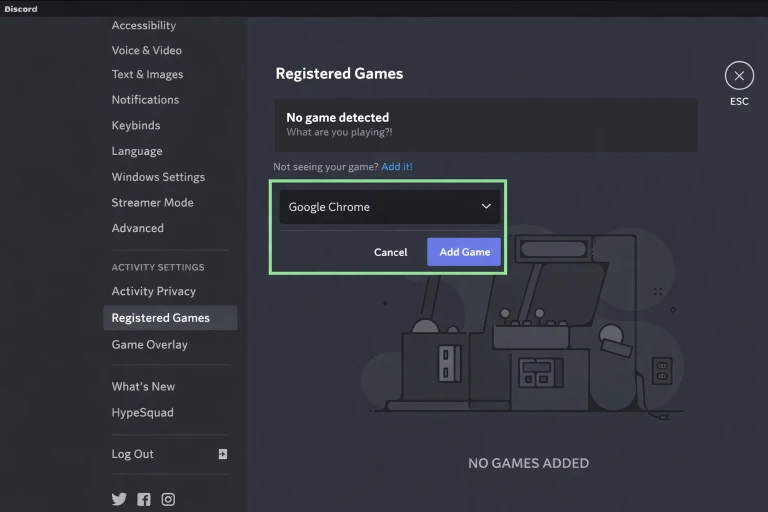
Discord needs to recognize your browser as an application to stream it properly.
Go to User Settings, then navigate to Activity Status. Click on “Add it” and select your browser from the list. Once added, Discord will allow you to share it as a stream.
This step is often skipped, but it’s essential for smooth streaming.
Start Screen Sharing
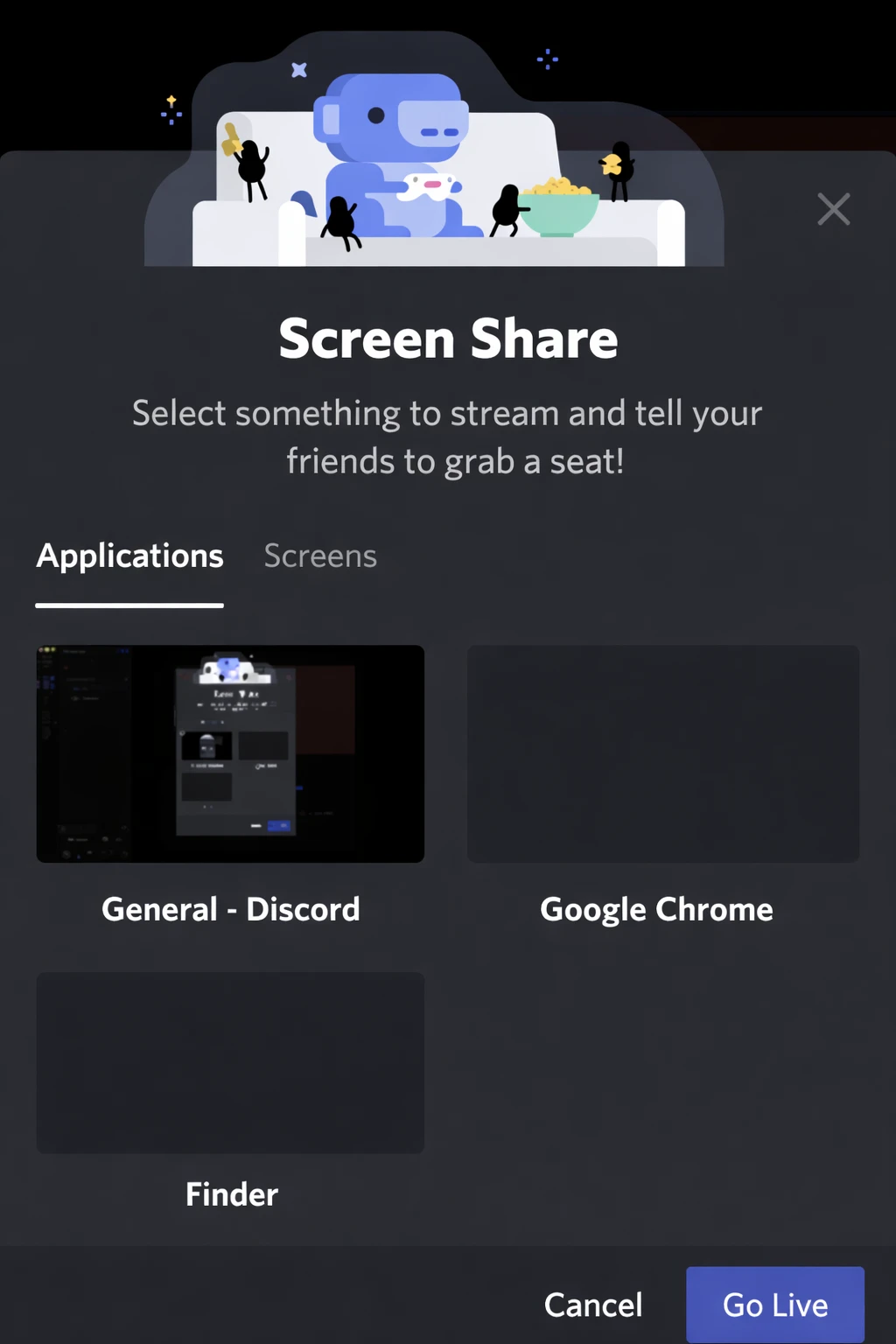
Click the Screen Share button in your voice channel. Select your browser window where Netflix is open.
Choose your preferred resolution and frame rate. If you don’t have Discord Nitro, 720p is usually the best option.
Once everything looks good, click “Go Live” to start streaming.
Play the Netflix Video
Now return to your browser and press play on your selected movie or show. You can switch to fullscreen mode for a better viewing experience.
Your friends should now be able to watch the stream in real time without issues.
How to Fix Black Screen When Streaming Netflix on Discord
If you’re still facing issues, don’t worry. This is the most important part of the guide.
Disable Hardware Acceleration in Your Browser
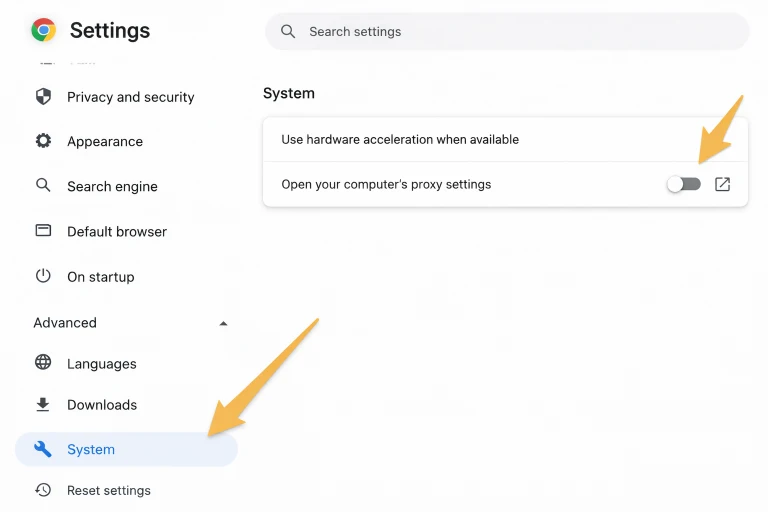
In Chrome or Edge, go to settings and search for “hardware acceleration.” Turn it off and restart the browser.
This prevents your GPU from interfering with screen sharing.
Disable Hardware Acceleration in Discord
Open Discord settings, go to Advanced, and turn off hardware acceleration there as well. Restart Discord after making changes.
Close Background Apps
Apps like OBS, other browsers, or heavy software can conflict with Discord streaming. Close unnecessary apps to improve performance.
Update Your Browser and Discord
Outdated software can cause compatibility issues. Make sure both your browser and Discord are updated to the latest version.
Best Tips for Smooth Netflix Streaming
Streaming quality depends on your setup and internet speed. Here are a few practical tips to improve your experience.
- Use a stable internet connection, preferably Wi-Fi with good speed
- Lower stream resolution if you notice lag
- Use headphones to avoid audio echo
- Keep Discord and browser updated
Small adjustments like these can make a big difference in stream quality.
Common Mistakes to Avoid
Many users struggle because of small setup mistakes.
One common mistake is trying to stream the entire screen instead of the browser window. This often results in poor quality or black screen issues.
Another mistake is forgetting to enable audio sharing. Without this, viewers won’t hear anything even if the video works perfectly.
Lastly, using the Netflix app instead of a browser can cause unnecessary complications.
Key Takeaways
Streaming Netflix on Discord is simple once you follow the correct setup. The black screen issue is usually caused by hardware acceleration or DRM protection, both of which can be managed easily.
Using a browser, disabling hardware acceleration, and selecting the correct screen share settings are the most important steps for success.
Frequently Asked Questions (FAQs)
Why is my Netflix stream black on Discord?
This usually happens Because of DRM protection or hardware acceleration conflicts. Disabling hardware acceleration fixes the issue in most cases.
Can I stream Netflix on Discord mobile?
No, mobile devices have limitations and often show a black screen. Desktop is the best option.
Do I need Discord Nitro to stream Netflix?
No, but Nitro allows higher resolution streaming like 1080p and better frame rates.
How do I share Netflix audio on Discord?
Make sure you enable audio sharing when starting screen share. Otherwise, viewers won’t hear anything.
Is streaming Netflix on Discord allowed?
Streaming privately with friends is generally fine, but public streaming may violate Netflix’s terms.
Which browser works best for streaming?
Google Chrome and Microsoft Edge are the most reliable options for streaming Netflix on Discord.
Conclusion
Now you fully understand how to stream Netflix on Discord without black screen problems. The process is straightforward once you know the right settings and fixes.
By using a browser instead of the app, disabling hardware acceleration, and selecting the correct screen share option, you can enjoy smooth and uninterrupted watch parties with your friends.
Take a few minutes to set everything up properly, and you’ll never have to deal with black screen issues again.