

Introduction
Audio quality plays an important role in how we experience music, movies, games, and online communication. Many computers use Realtek audio hardware, which includes built-in software tools that allow users to adjust and customize sound output.
One of the most useful features provided by Realtek audio drivers is the Realtek sound equalizer. This tool allows users to control different audio frequencies to improve sound quality based on personal preferences.
Whether you want stronger bass for music, clearer voices for video calls, or balanced audio for gaming, the Realtek sound equalizer can help optimize your listening experience.
This guide explains what the Realtek sound equalizer is, how it works, how to enable it, and how to adjust it for the best audio performance.
What is Realtek Sound Equalizer
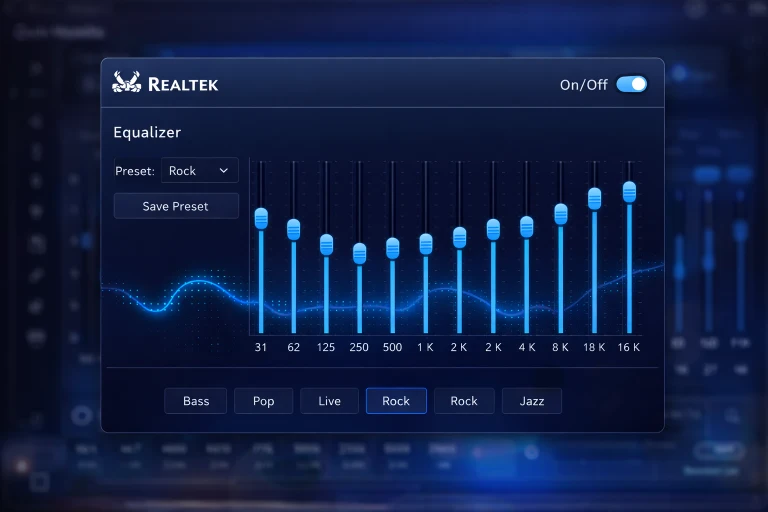
The Realtek sound equalizer is a feature included in Realtek audio drivers that allows users to control audio frequencies on their computer. It works by adjusting different sound frequency levels such as bass, midrange, and treble.
By changing these frequency levels, users can customize how their speakers or headphones sound.
The Realtek equalizer is usually found in:
- Realtek HD Audio Manager
- Realtek Audio Console
- Windows sound settings (depending on driver version)
This feature helps improve audio clarity and allows users to adapt sound settings for different types of content.
How Sound Equalizers Work
A sound equalizer works by controlling different audio frequencies. Audio signals contain multiple frequency ranges that affect how sound is perceived.
These frequency ranges typically include:
- Low frequencies (bass)
- Mid frequencies (vocals and instruments)
- High frequencies (treble and detail)
The equalizer allows users to increase or decrease these frequency levels.
For example:
- Increasing bass makes music sound deeper
- Boosting mid frequencies improves vocal clarity
- Increasing treble enhances sharp sounds
By balancing these levels, users can create a sound profile that matches their preferences.
Realtek HD Audio Manager
Many computers include Realtek HD Audio Manager, which provides access to the sound equalizer and other audio settings.
This software allows users to control:
- Speaker configuration
- Microphone settings
- Audio effects
- Sound equalizer levels
Users can also create custom sound profiles for different situations.
For example, you can create separate settings for:
- Music listening
- Movie watching
- Gaming
- Voice communication
These profiles allow quick switching between sound modes.
How to Enable Realtek Sound Equalizer
If your computer uses Realtek audio drivers, the equalizer can usually be enabled through the audio control panel.
Method 1: Using Realtek Audio Manager
Follow these steps:
- Open the Control Panel.
- Click on Realtek HD Audio Manager.
- Navigate to the Sound Effects section.
- Enable the Equalizer option.
- Adjust the frequency sliders as needed.
This method works on many older Realtek driver versions.
Method 2: Using Realtek Audio Console
Newer Windows systems may use the Realtek Audio Console instead.
Steps include:
- Open the Microsoft Store version of Realtek Audio Console.
- Select your audio device.
- Go to the sound effects section.
- Enable the equalizer.
- Choose a preset or create a custom profile.
This modern interface is used on many newer laptops and motherboards.
Method 3: Using Windows Sound Settings
Some systems allow equalizer adjustments through Windows audio enhancements.
Steps include:
- Right-click the speaker icon.
- Select Sound Settings.
- Choose your playback device.
- Open device properties.
- Enable audio enhancements or equalizer settings.
Not all systems include this option.
Realtek Equalizer Presets
The Realtek sound equalizer often includes preset profiles designed for different audio types.
Common presets include:
Bass
Boosts low frequencies for stronger bass sound.
Best for:
- Electronic music
- Hip-hop
- Bass-heavy songs
Pop
Balances vocals and instruments for modern music.
Best for:
- Pop music
- Radio songs
- Streaming playlists
Rock
Enhances guitars and midrange sounds.
Best for:
- Rock music
- Alternative music
- Live recordings
Jazz
Provides smooth and balanced audio.
Best for:
- Jazz
- Classical music
- Acoustic performances
Classical
Enhances detailed and dynamic audio.
Best for:
- Orchestra music
- Piano recordings
- Instrumental tracks
These presets help users quickly adjust sound quality without manual tuning.
Customizing the Realtek Sound Equalizer
Many users prefer creating their own sound profile instead of using presets.
To customize the equalizer:
- Open Realtek Audio Manager or Audio Console.
- Enable the equalizer feature.
- Adjust each frequency slider.
- Save the custom profile.
Typical equalizer bands include frequencies such as:
- 31 Hz
- 62 Hz
- 125 Hz
- 250 Hz
- 500 Hz
- 1 kHz
- 2 kHz
- 4 kHz
- 8 kHz
- 16 kHz
Lower numbers control bass while higher numbers control treble.
Experimenting with these settings allows users to create personalized sound experiences.
Benefits of Using Realtek Sound Equalizer
The Realtek sound equalizer provides several advantages.
Improved Audio Quality
Users can adjust sound output to match their speakers or headphones.
Personalized Sound
Everyone has different audio preferences. Equalizer settings allow customization.
Better Gaming Experience
Clearer audio can help gamers detect sounds such as footsteps and environmental effects.
Enhanced Movie Watching
Balanced sound improves dialogue clarity and background music.
Better Music Listening
The equalizer allows music to sound richer and more detailed.
These benefits make the equalizer an essential audio tool for many computer users.
Troubleshooting Realtek Equalizer Issues
Sometimes users may not see the equalizer option. This can happen for several reasons.
Missing Realtek Drivers
If Realtek drivers are not installed properly, the equalizer may not appear.
Solution:
- Download the latest drivers from the motherboard or laptop manufacturer.
Windows Driver Replacement
Windows updates sometimes replace Realtek drivers with generic audio drivers.
Solution:
- Reinstall the official Realtek driver.
Realtek Audio Console Not Installed
New systems often require the Realtek Audio Console app.
Solution:
- Install it from the Microsoft Store.
Audio Enhancements Disabled
Some systems disable audio effects.
Solution:
- Enable audio enhancements in sound settings.
Fixing these issues usually restores the equalizer feature.
Alternatives to Realtek Sound Equalizer
Although Realtek provides a built-in equalizer, other software can offer additional audio controls.
Popular alternatives include:
- Equalizer APO
- FxSound
- Voicemeeter
- Dolby Atmos software
- Nahimic audio software
These tools provide advanced sound customization and additional effects.
However, Realtek equalizer is often sufficient for most users.
Realtek Equalizer for Headphones vs Speakers
Equalizer settings can vary depending on the type of audio device being used.
Headphones
Headphones often require less bass boost because they are close to the ears.
Balanced settings usually work best.
Speakers
Speakers may benefit from additional bass and wider sound adjustments.
Room acoustics can also affect sound quality.
Users may need separate profiles for headphones and speakers.
Future of PC Audio Customization
As audio technology continues to improve, sound customization tools are becoming more advanced.
Future developments may include:
- AI-powered sound tuning
- Automatic audio optimization
- Spatial audio enhancements
- Personalized hearing profiles
Realtek and other audio companies are continuously improving software to deliver better listening experiences.
Conclusion
The Realtek sound equalizer is a powerful tool that allows users to customize audio output on their computers. By adjusting frequency levels such as bass, midrange, and treble, users can create sound profiles that match their preferences.
Whether you are listening to music, watching movies, gaming, or attending online meetings, the equalizer helps improve audio clarity and overall sound quality.
With the right settings and updated drivers, the Realtek sound equalizer can significantly enhance your PC audio experience.
FAQ
What is Realtek sound equalizer
The Realtek sound equalizer is a feature in Realtek audio drivers that allows users to adjust sound frequencies to improve audio quality.
How do I enable Realtek equalizer
You can enable it through Realtek HD Audio Manager, Realtek Audio Console, or Windows sound settings depending on your system.
Why can’t I see the Realtek equalizer
The equalizer may be missing if Realtek drivers are not installed or if Windows has replaced them with generic audio drivers.
Is Realtek equalizer good for gaming
Yes. Adjusting audio frequencies can help improve sound clarity and enhance the gaming experience.
Can I install a better equalizer than Realtek
Yes. Tools such as Equalizer APO and FxSound provide more advanced audio control.