

Introduction
If you’ve ever shared someone else’s post and later changed your mind, you might be wondering how to unrepost on Instagram. Whether it was a mistake, outdated content, or just something you no longer want on your profile, removing a repost is simple once you know where to look. Instagram doesn’t have a native “repost” button like some other platforms, so the method depends on how the content was shared. In this guide, you’ll learn exactly how to remove reposted content from your feed, story, or third-party apps in a clear and beginner-friendly way.
What Does “Unrepost” Mean on Instagram?
Before jumping into steps, it’s important to understand what “unrepost” actually means.
Instagram doesn’t officially use the word “repost.” Instead, users share content in different ways:
- Sharing a post to your story
- Using third-party repost apps
- Saving and re-uploading someone else’s content
So, “unreposting” simply means removing that shared content from wherever you posted it.
How to Unrepost on Instagram Feed
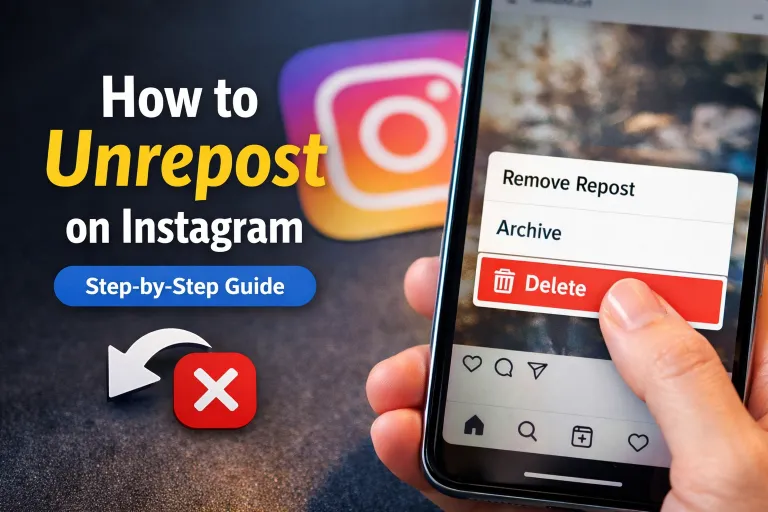
If you reposted content directly to your feed (usually through a third-party app or manual upload), removing it is the same as deleting any regular post.
Step-by-Step Guide
- Open Instagram and go to your profile
- Find the reposted post you want to remove
- Tap on the post
- Click the three dots in the top right corner
- Select “Delete”
- Confirm the deletion
Once deleted, the reposted content will no longer appear on your profile.
Important Tip
If you think you might want the post later, you can archive it instead of deleting. Archiving hides the post without permanently removing it.
How to Remove a Repost from Instagram Story
Many users share posts through Instagram Stories. These automatically disappear after 24 hours, but you can remove them instantly if needed.
Steps to Delete a Story Repost
- Open your active story
- Tap the three dots (More option)
- Select “Delete”
- Confirm your choice
The story will be removed immediately and no one will be able to view it anymore.
How to Unrepost Using Third-Party Apps
If you used a repost app to share content, the app itself doesn’t control your post once it’s uploaded. That means you still need to delete it manually from Instagram.
Key Insight
Even if you used a reposting app, the post lives on your Instagram account. So:
- Open Instagram
- Go to your profile
- Delete the post like any normal upload
There’s no special “undo repost” button inside those apps.
What About Instagram’s “Repost” Feature?
Instagram has been testing a repost feature in some regions, allowing users to reshare posts directly to their feed.
If you have access to this feature:
- Go to your profile
- Find the reposted content
- Tap the three dots
- Select “Remove” or “Delete repost”
If you don’t see this option, your account likely doesn’t have this feature yet.
Common Reasons to Unrepost on Instagram
People remove reposted content for different reasons. Understanding these can help you manage your content better.
1. Content No Longer Relevant
Trends change quickly, and what seemed interesting yesterday may feel outdated today.
2. Personal Branding
You may want your profile to reflect a specific style or message.
3. Copyright Concerns
If you shared someone else’s content without proper credit, it’s safer to remove it.
4. Mistakes or Wrong Uploads
Sometimes posts are shared accidentally or with incorrect captions.
Best Practices Before Reposting Content
To avoid needing to unrepost frequently, follow these simple tips:
- Always check the content carefully before posting
- Give proper credit to the original creator
- Make sure it aligns with your profile theme
- Avoid reposting low-quality or unclear images
These habits help keep your profile clean and professional.
Can You Recover a Deleted Repost?
Yes, Instagram has a “Recently Deleted” feature that allows you to recover posts within a limited time.
How to Recover
- Go to Settings
- Tap “Account”
- Select “Recently Deleted”
- Choose the post you want to restore
- Tap “Restore”
This feature is useful if you accidentally remove something important.
Difference Between Unreposting and Unsharing
Many users confuse these two terms.
- Unreposting means deleting content you shared on your feed
- Unsharing usually refers to removing something from your story or undoing a share
Understanding this difference helps you choose the right method.
Key Takeaways
- Instagram doesn’t have a direct “unrepost” button in most cases
- To unrepost, simply delete the shared content from your profile or story
- Reposts made via apps are removed the same way as normal posts
- You can recover deleted posts using the Recently Deleted feature
- Always review content before reposting to avoid extra work later
FAQs
How do I unrepost on Instagram without deleting the post?
You can archive the post instead of deleting it. This hides it from your profile but keeps it saved.
Can I undo a repost immediately after posting?
Yes, you can delete the post right away from your profile using the three-dot menu.
Does Instagram notify users when you delete a repost?
No, Instagram does not notify anyone when you remove a post.
Can I remove someone else’s repost of my content?
No, you cannot remove it directly. You can report the post if it violates Instagram guidelines.
Why don’t I see the repost option on Instagram?
The repost feature is not available to all users yet. Instagram is still testing it in some regions.
Conclusion
Learning how to unrepost on Instagram is simple once you understand how content is shared on the platform. Whether you posted something to your feed, story, or through a third-party app, the solution usually comes down to deleting or archiving the content. Managing your posts carefully helps you maintain a clean, professional profile and avoid unnecessary edits later. By following the steps and tips in this guide, you can stay in control of your Instagram content with confidence.