

Introduction
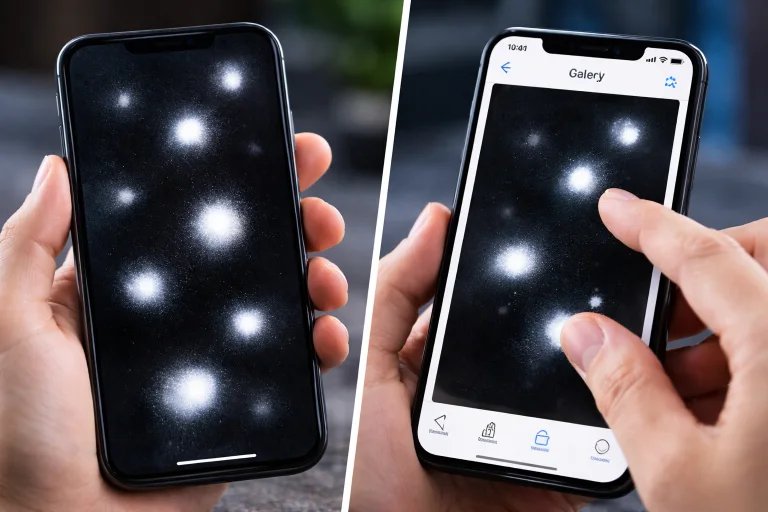
Noticing white spots on mobile screen can be frustrating, especially when they suddenly appear and ruin your viewing experience. Whether you’re watching videos or scrolling social media, these bright spots can be distracting. But here’s the important part—before assuming your screen is damaged, you can use a simple screenshot method to diagnose the issue correctly.
This guide explains everything clearly, including causes, fixes, and how screenshots help you identify the real problem step by step.
What Are White Spots on a Mobile Screen?
White spots are bright patches or dots that appear on your phone’s display. They are usually more visible on dark backgrounds and can stay fixed in one place.
These spots may be caused by:
- Physical screen damage
- Pixel issues
- Internal display faults
- Software glitches
Understanding the cause is the key to fixing them properly.
Screenshot Test: Identify the Real Problem
The screenshot method is one of the easiest ways to diagnose white spots on mobile screen.
How to Perform the Test
Follow these simple steps:
- Open a dark background (black wallpaper works best)
- Make sure the white spots are clearly visible
- Take a screenshot (Power + Volume Down)
- Open the screenshot in your gallery
- Zoom in and inspect carefully
What Your Screenshot Result Means
If White Spots Appear in Screenshot
This means the issue is software-related.
Possible reasons include:
- App glitch
- System bug
- Display rendering issue
This type of problem is usually temporary and easy to fix.
If White Spots Do NOT Appear
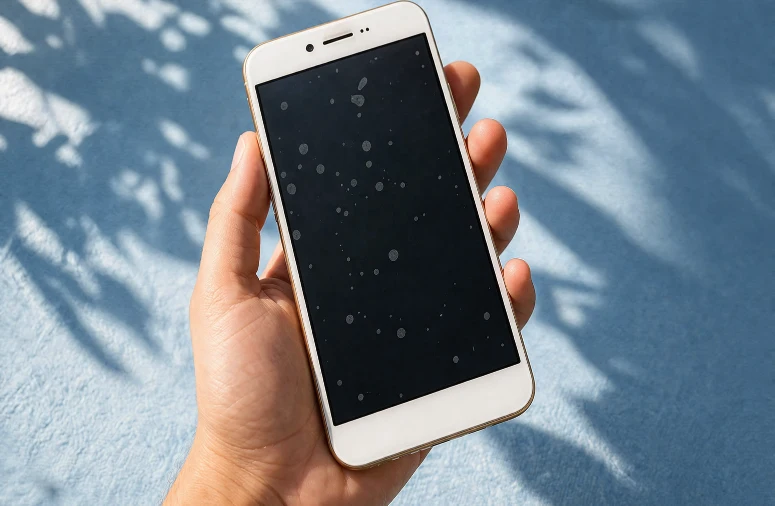
If the screenshot looks normal but spots are still visible on your screen, then the issue is hardware-related.
This means:
- The screen panel is damaged
- Internal layers are affected
- Pixels or backlight are faulty
In this case, software fixes will not work.
Common Causes of White Spots on Mobile Screen
1. Pressure Damage
This is the most common cause. When pressure is applied to the screen, it damages internal layers.
Examples:
- Sitting on your phone
- Keeping it in a tight pocket
- Dropping heavy objects on it
These spots often grow over time.
2. Stuck or Dead Pixels
Pixels are tiny dots that form your display. When they malfunction:
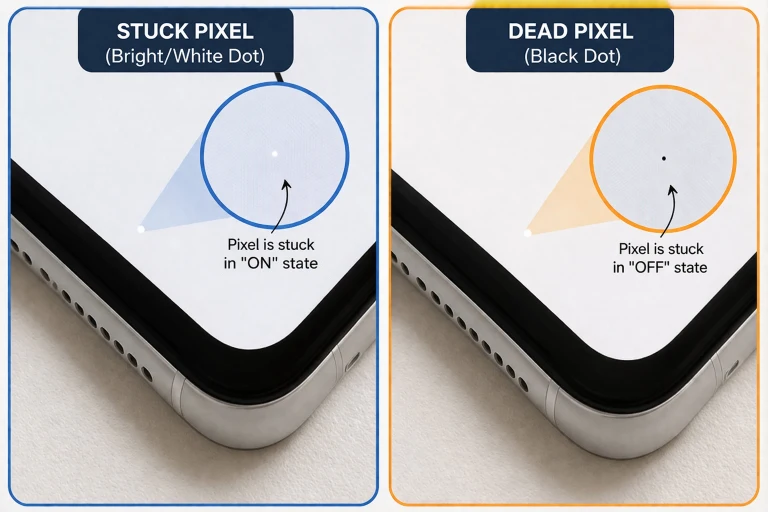
- Dead pixels appear black
- Stuck pixels may appear white or bright
Sometimes, pixel issues can be fixed.
3. Backlight Bleeding (LCD Screens)
In LCD displays, uneven lighting can cause bright patches. This looks like white spots, especially in darker areas.
4. Screen Burn-In (OLED)
OLED screens can develop uneven brightness if static images stay too long. Though rare, it can create spot-like effects.
5. Water or Moisture Damage
Water entering your device can damage internal components and cause display issues.
6. Software Glitches
Sometimes the issue is not physical. Bugs in apps or system updates can create temporary white spots.
How to Fix White Spots on Mobile Screen
1. Restart Your Phone
A simple restart can fix minor glitches instantly.
2. Confirm Using Screenshot Test
Always check first:
- Screenshot shows spots → software issue
- Screenshot doesn’t show → hardware issue
This step saves time and avoids wrong fixes.
3. Update Your Phone
Software updates fix bugs and improve display performance.
4. Use Pixel Repair Apps
If the issue is stuck pixels, try pixel-fixing apps. These apps flash colors to restore pixels.
5. Adjust Display Settings
Sometimes incorrect settings make the problem look worse. Try adjusting:
- Brightness
- Color mode
- Contrast
6. Factory Reset (Software Issues Only)
If the screenshot confirms a software issue:
- Back up your data
- Perform a factory reset
7. Screen Replacement (Hardware Issues)
If your screen is physically damaged, replacement is the only permanent solution.
Real-Life Example
Imagine you notice a white spot after sitting with your phone in your pocket. You take a screenshot—but the spot doesn’t appear.
This confirms it’s hardware damage caused by pressure. In this case, replacing the screen is the only fix.
On the other hand, if the spot appears in the screenshot, a simple restart or update could solve it.
When to Visit a Technician
You should get professional help if:
- White spots are increasing
- Screen becomes unresponsive
- You see flickering or discoloration
- Your phone had water exposure
How to Prevent White Spots
To avoid this issue in the future:
- Use a protective case
- Avoid tight pockets
- Keep your phone away from water
- Don’t apply pressure on the screen
- Use a screen protector
Key Takeaways
- White spots on mobile screen can be hardware or software-related
- The screenshot test is the easiest way to identify the issue
- Software issues are usually fixable at home
- Hardware problems often require screen replacement
- Prevention can save you repair costs
FAQs
1. Why are white spots not showing in screenshots?
Because the issue is physical (hardware), not digital.
2. Can white spots disappear?
Only if they are caused by software or minor pixel issues.
3. Is it safe to keep using the phone?
Yes, but the issue may worsen over time.
4. Can apps fix white spots?
Only if the problem is related to stuck pixels or software.
5. Do white spots spread?
Yes, especially in cases of pressure damage.
Conclusion
White spots on mobile screen may seem like a serious issue, but with the screenshot method, you can quickly understand the real cause. This simple test helps you decide whether you need a quick fix or professional repair. Acting early can save your phone and your money. Always handle your device carefully to avoid such problems in the future.